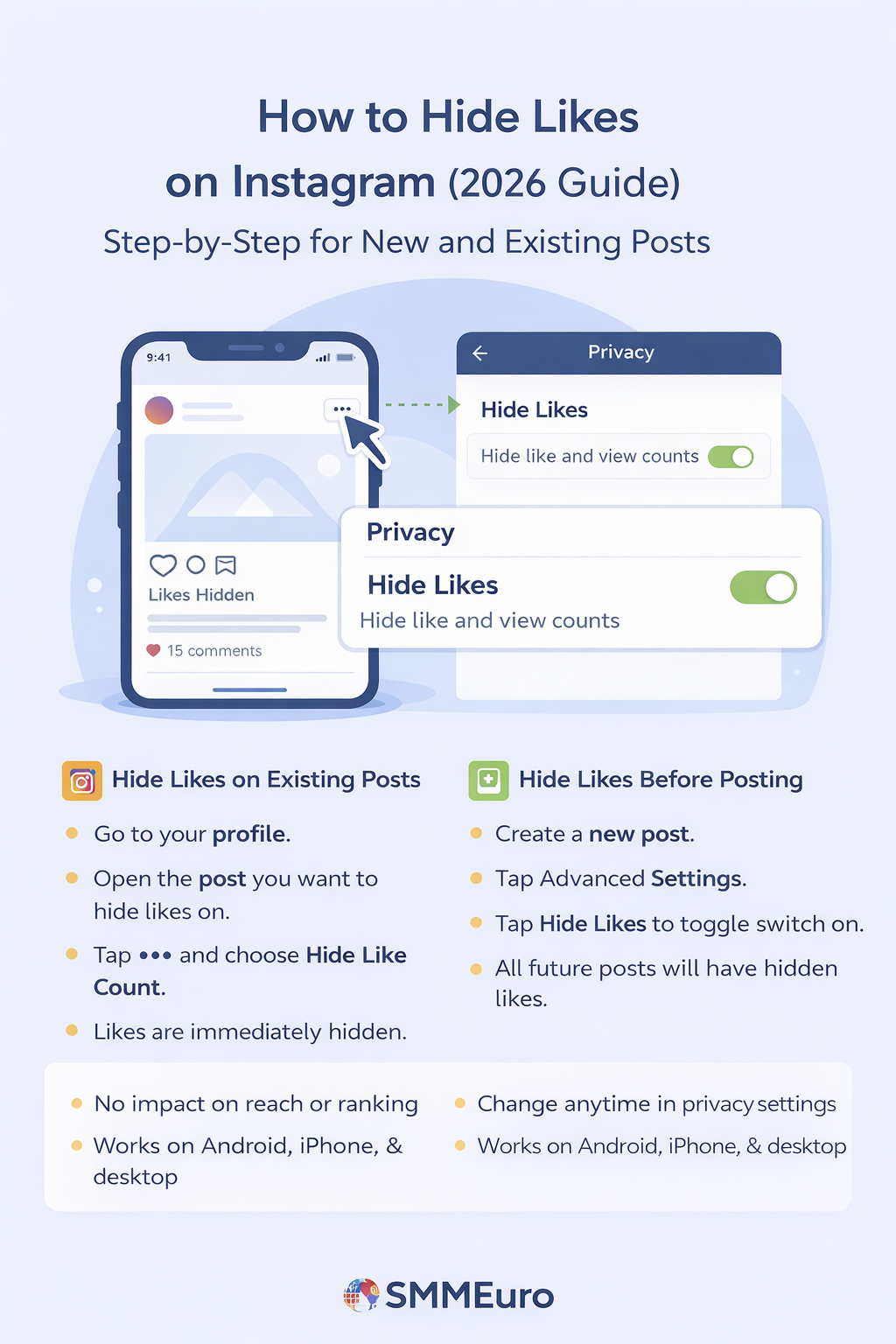
How to Hide Likes on Instagram (2026 Guide) – Step-by-Step for New and Existing Posts
Instagram likes used to be one of the biggest indicators of social success — but they also created pressure and competition. To address this, Instagram introduced a feature that allows users to hide like counts from their posts.
Whether you’re a creator, brand, or casual user, hiding likes on Instagram can help you focus more on content quality and less on numbers.
In this 2026 SMMEuro guide, we’ll show you how to hide likes on both existing and new posts, and explain why this underrated feature can improve your social media experience.
💡Why Hiding Likes Can Be Beneficial
Hiding likes might seem like a small change, but it has a big impact on how you view and manage your content.
🧩 1. Improves Content Quality
When you hide likes, you stop worrying about numbers — and start focusing on creativity.
Likes are not the true measure of success; content quality and engagement matter more.
Instagram’s algorithm prioritizes high-quality, engaging content over total likes, so this feature helps creators post freely without pressure.
💬 2. Reduces the Need for Social Validation
Social media validation can affect mental health and confidence.
By hiding likes, you remove that comparison trap — especially when comparing your posts to larger pages or brands.
This helps you stay authentic and post what you truly enjoy instead of chasing approval.
⚙️ 3. Doesn’t Affect Instagram’s Algorithm
Many users think hiding likes lowers reach or engagement — it doesn’t.
Instagram officially confirmed that the algorithm doesn’t use like counts to decide what content to show.
The platform promotes posts based on quality, comments, saves, and watch time, not visible likes.
🕹️ How to Hide Likes on Instagram
You can hide like counts on both existing posts and future posts.
Follow these steps for each method:
🧠 Hide Likes on Existing Posts
Go to your profile.
- Open the post where you want to hide likes.
- Tap the three dots (⋮) in the top-right corner of the post.
- Select “Hide Like Count.”
- The like count will instantly disappear for that post.
💡 Note: You’ll still see your own likes privately — only your followers won’t see them.
⚙️ Hide Likes Before Posting
If you want to hide likes for all future posts automatically, Instagram now allows that from the advanced settings section.
Start creating a new post.
- Before publishing, scroll to Advanced Settings.
- Tap Likes and Views.
- Toggle on Hide Like and View Counts on This Post.
This setting applies to all future posts until you manually change it back.
🧩 Important Notes About the “Hide Likes” Feature
- You’ll still receive notifications when someone likes your post.
- You can’t hide likes on other people’s posts, only your own.
- You can’t hide likes on stories — they only show view counts.
- You can turn likes back on anytime by repeating the same steps.
💬 Frequently Asked Questions (FAQ)
❓ Why can’t I hide likes on Instagram?
You might be using an older app version. Update Instagram to the latest version from the App Store or Google Play.
❓ Does hiding likes affect my ranking or reach?
No. Hiding likes doesn’t affect your reach, algorithm ranking, or engagement rate. The algorithm values content quality, not visible likes.
❓ Can others see that I’ve hidden my like counts?
No, this is a private setting. Other users can’t tell if you’ve hidden your likes.
❓ Will hiding likes affect engagement rate?
No. Your engagement rate is based on likes, comments, and shares — even if likes are hidden from public view.
❓ Can I hide likes on Instagram stories?
No, stories don’t display likes — they only show views and reactions.