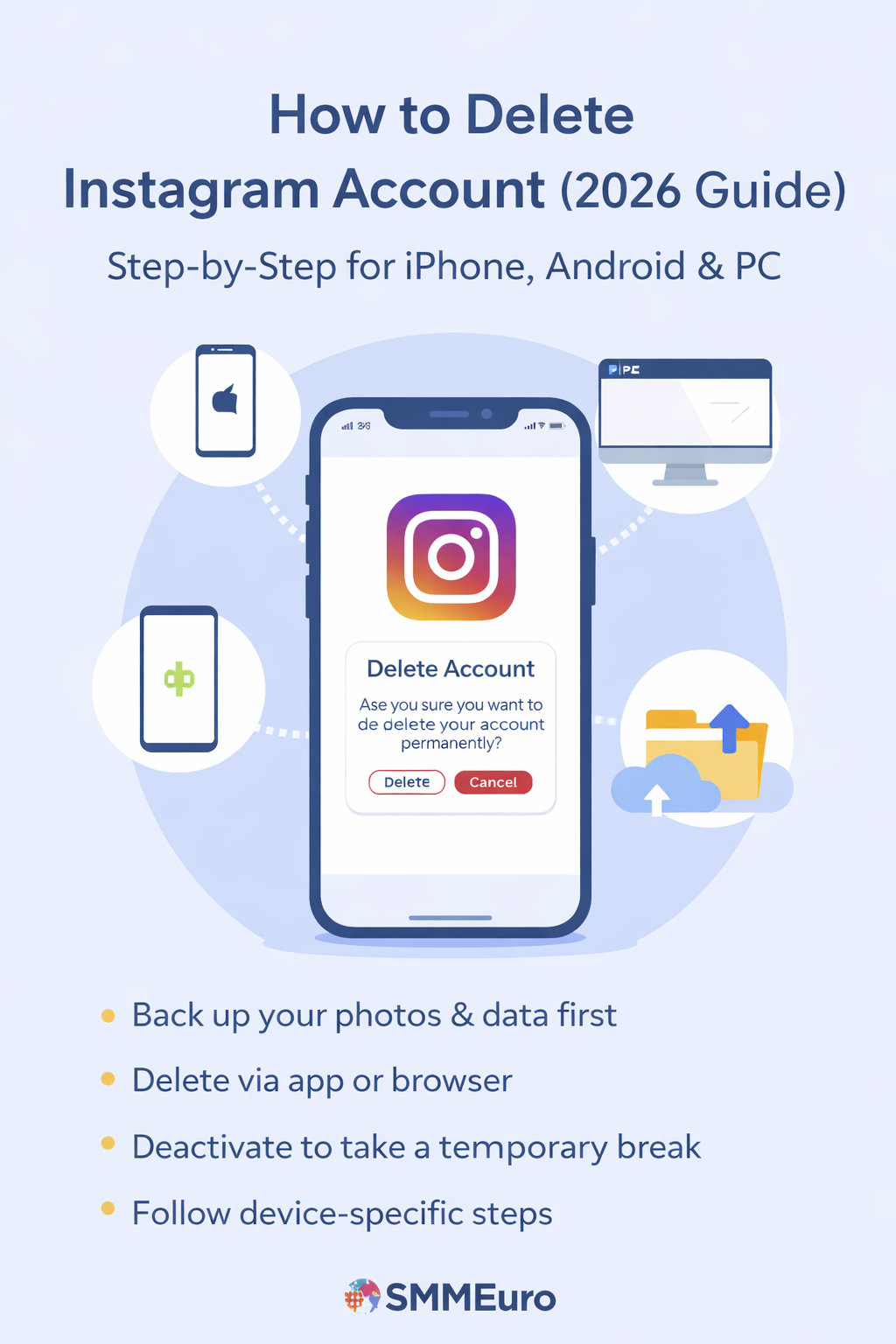
How to Delete Instagram Account (2026 Guide) – Step-by-Step for iPhone, Android & PC
Updated: January 2026
Instagram is one of the most popular social platforms worldwide — but not everyone wants to stay connected forever.
Whether you’re taking a digital break, protecting your privacy, or closing a business account, deleting your Instagram account in 2026 is simple.
This comprehensive guide by SMMEuro explains how to delete or deactivate your Instagram account permanently or temporarily — with step-by-step instructions for iPhone, Android, and desktop users.
Before You Delete – Back Up Your Instagram Data
Before deleting your account, it’s important to save your photos, messages, and insights — especially if you manage a brand or business page.
Follow these quick steps to download your Instagram data:
Go to your profile and tap the three lines in the top right.
- Select “Your Activity.”
- Scroll down and tap “Download Your Information.”
- Enter your email address and confirm with your password.
- Tap “Done” — Instagram will email your data file within 24 hours.
💡 Pro tip from SMMEuro: Always back up analytics, followers list, and campaign metrics before deleting a business account.
How to Permanently Delete Your Instagram Account
On iPhone (iOS)
Open the Instagram app on your iPhone.
- Go to your profile → tap the menu icon (☰) → Settings.
- Select Account → Delete Account.
- Choose Delete Account Permanently.
- Answer the question “Why are you deleting your account?”
- Re-enter your password and tap Delete.
🤖 On Android
Unlike iOS, the Android Instagram app doesn’t offer a direct delete option.
You’ll need to use your browser instead.
Open Chrome or your mobile browser.
- Go to: instagram.com/accounts/remove/request/permanent/
- Log in and choose a reason for deletion.
- Re-enter your password.
- Tap Delete Account.
💻 On Desktop or Laptop
Go to Instagram.com.
- Click your profile icon → Settings.
- Choose See More in Accounts Center.
- Under Account Ownership and Control, click Deactivation or Deletion.
- Select the account → Delete Account Permanently.
- Confirm your reason and password, then delete.
⏸️ How to Temporarily Deactivate Your Instagram Account
If you just need a break from social media, you can deactivate instead of deleting.
When deactivated, your profile, posts, and followers stay hidden until you log back in.
📱On Mobile
Open Instagram app → Profile → ☰ Menu → Settings and Privacy.
- Tap Account Ownership and Control.
- Select the account you want to deactivate.
- Choose Deactivate Account → Enter your password → Confirm.
💻 On Desktop
Go to Instagram.com.
- Click your profile picture → Settings.
- Choose See More in Accounts Center.
- Click Account Ownership and Control.
- Choose Deactivate Account, select duration (temporary), and confirm.
💡 Note: You can reactivate anytime by logging back in.
💬 Frequently Asked Questions (FAQ)
❓ Does disabling my Instagram account delete my data?
No. When you disable your account temporarily, Instagram keeps your data safe.
Your photos and messages return once you log in again.
❓ Can I recover a permanently deleted account?
Flat text:
No. Once deleted, your data and username are permanently removed and cannot be restored.
❓ How long does it take for deletion to complete?
Flat text:
Instagram holds your deletion request for 30 days, during which your account remains invisible. After that, all data is permanently erased.
❓ Can I delete a business or creator account the same way?
Flat text:
Yes. The process is identical, but always back up analytics and campaign data before deletion.