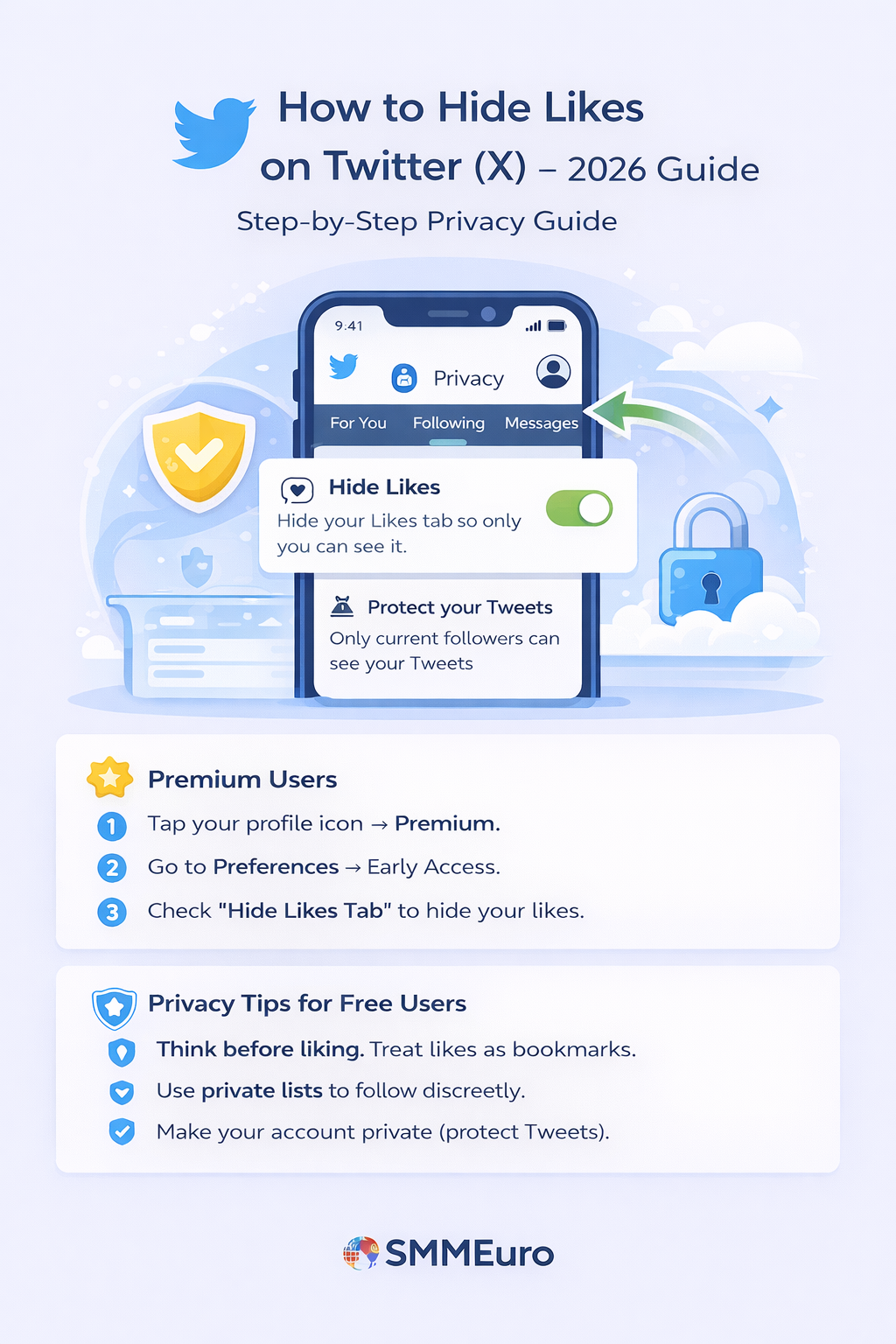
How to Hide Likes on Twitter (X) in 2026 – Step-by-Step Privacy Guide
Privacy is more important than ever in 2026. Whether you’re a content creator or a casual user, sometimes you just don’t want others to see what you like on Twitter (now called X).
The “hide likes” option helps you control what others can view on your profile — but there’s a catch: it’s only available for Premium users.
Don’t worry! This SMMEuro guide explains how to hide likes on Twitter (X) for both Premium and regular users, along with alternative privacy methods to keep your account safe and private.
🔐 Understanding the “Hide Likes” Feature on Twitter (X)
Currently, only Premium (Blue) subscribers can hide their Likes tab completely.
If you’re a free user, you can still increase your privacy by protecting your tweets and adjusting visibility settings.
Here’s the difference:
FeatureFree UsersPremium UsersHide Likes Tab❌ Not available✅ AvailableMake Account Private✅ Yes✅ YesHide Specific Tweets❌ No❌ NoControl Who Follows✅ Yes✅ Yes
⚙️ Step-by-Step Guide to Hiding Likes on Twitter (X)
💻 For PC Users (Free Option)
- Log in to your Twitter (X) account on your browser.
- Click your profile icon → go to Settings and privacy.
- Select Privacy and safety.
- Click Audience, Media, and Tagging.
- Toggle on “Protect your tweets.”
✅ This makes your profile private — only approved followers can see your tweets and likes.
📱 For iOS and Android Users (Free Option)
- Open the Twitter (X) app.
- Tap your profile icon (top-left corner).
- Select Settings and Support → Settings and Privacy.
- Tap Privacy and safety.
- Choose Audience and Tagging.
- Toggle on Protect your tweets.
💡 Tip: When your account is private, your Likes are also hidden from non-followers.
🌟 For Premium Users (Hide Likes Tab)
If you’re subscribed to X Premium, you can directly hide your Likes tab.
Here’s how:
- Tap your profile icon → Premium.
- Select Preferences → Early Access.
- Open the Profile Customization tab.
- Check the box for “Hide Likes Tab.”
Once activated, the Likes tab disappears completely from your profile — even your followers won’t see it.
🧩 The Impact of Hiding Likes
Hiding your Likes can change how others perceive your Twitter activity.
Here’s what you can expect:
🧠 1. More Control Over Privacy
No one can view what you’ve liked, giving you greater freedom to engage without judgment.
💬 2. Less Social Pressure
When others can’t see your Likes, you stop worrying about how interactions might appear publicly.
🎯 3. More Genuine Engagement
You’ll likely focus more on tweeting, commenting, and conversations — instead of passive liking.
🔒 Alternatives to Hiding Likes
Even without Premium, you can stay private on Twitter (X) by using these techniques:
🧠 1. Think Before You Like
Your Likes are public by default, so interact intentionally. Treat them as bookmarks, not approvals.
🧾 2. Use Private Lists
Lists are a great way to follow content discreetly.
How to create one:
- Tap Lists on your sidebar.
- Tap “Create New List.”
- Name your list and toggle Private.
- Add users you want to follow silently.
Now, you’ll see their tweets in a private feed — without Liking or following them.
🧩 3. Protect Your Tweets
Private profiles ensure that only followers you approve can see your posts, Likes, and replies.
💬 Frequently Asked Questions (FAQ)
❓Can Premium users see what others like?
No. Even Premium users cannot see Likes that other people have chosen to hide.
❓ If I hide my account, can people still find it?
Yes — your profile can still appear in searches, but new users must request to follow you before viewing your tweets or Likes.
❓ How often can I change my privacy settings?
As often as you like. You can toggle between public and private modes anytime.
❓ Can I hide individual tweets instead of my entire account?
No. Twitter (X) doesn’t allow you to hide single tweets — only entire profiles can be made private.